
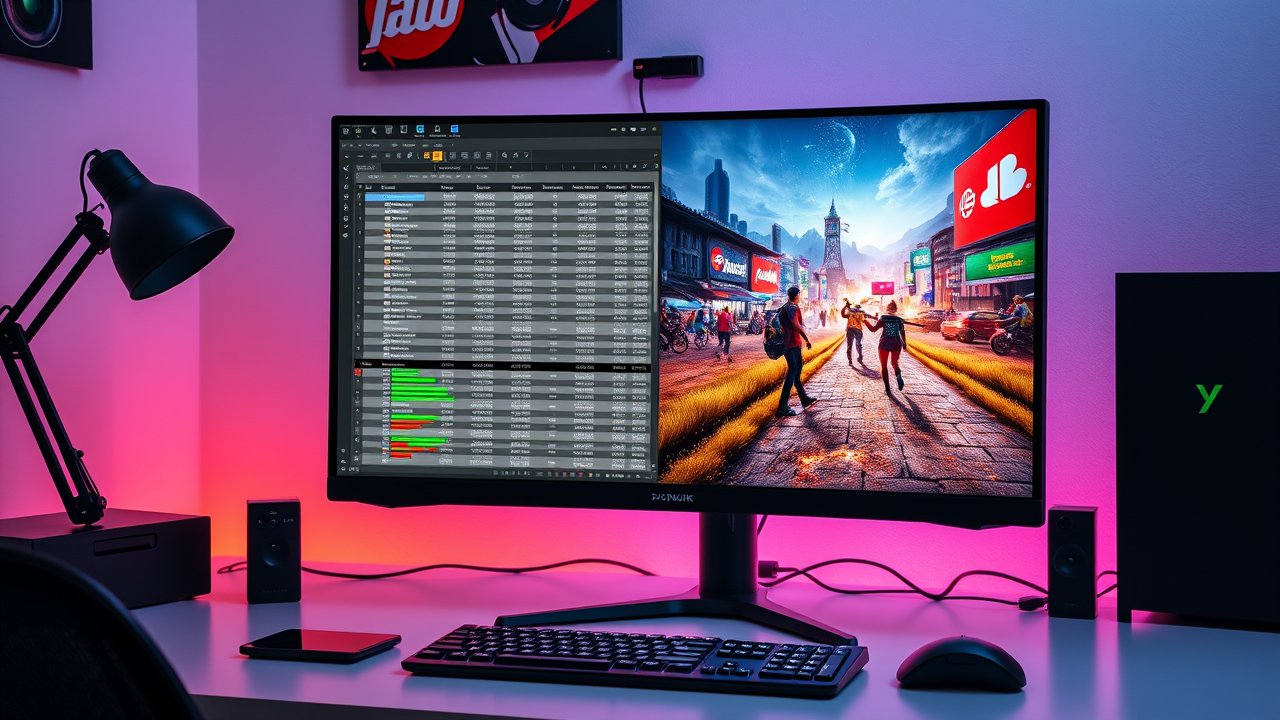
Most remote workers who game don’t have room – or budget – for two separate setups. You need one monitor that’s sharp and comfortable for eight hours of documents, spreadsheets, and video calls, then fast and immersive enough for an evening of gaming. That’s a different balance than a pure esports monitor or a basic office display. The best monitor for work and gaming offers a high resolution for text clarity, a fast refresh rate for smooth gameplay, accurate colors, and connectivity features like USB-C or a built-in KVM switch that make it easy to swap between a work laptop and a gaming PC. This guide compares six monitors that strike that balance, from budget 1440p panels to premium OLED and ultrawide displays.
As an Amazon Associate, I earn from qualifying purchases. This article contains affiliate links at no extra cost to you.
Quick Comparison Table
| Product | Price | Best For | Rating |
|---|---|---|---|
| Gigabyte M27Q (27″ 1440p, KVM) | ~$250–$300 | Best overall | ⭐⭐⭐⭐⭐ |
| Dell S2721DGF (27″ 1440p) | ~$250–$300 | Best all-rounder | ⭐⭐⭐⭐⭐ |
| LG UltraGear 27GP850-B | ~$300 | Best for fast gaming | ⭐⭐⭐⭐ |
| ASUS TUF VG27AQ | ~$200–$250 | Best budget | ⭐⭐⭐⭐ |
| Alienware AW3423DWF (34″ QD-OLED) | ~$700–$900 | Best ultrawide | ⭐⭐⭐⭐⭐ |
| LG UltraGear 27″ OLED | ~$700+ | Best premium OLED | ⭐⭐⭐⭐ |
Prices are approximate at the time of writing and may vary. Check Amazon for the current price.
Our Top Picks at a Glance
The Gigabyte M27Q is the best monitor for work and gaming for most people because its built-in KVM switch lets you control a work laptop and gaming PC with one keyboard and mouse. The Dell S2721DGF is a polished all-rounder with a fully adjustable stand. On a budget, the ASUS TUF VG27AQ delivers smooth 1440p gaming for around $200 to $250.
Reviews – The Best Monitor for Work and Gaming
1. Gigabyte M27Q – Best Overall
The Gigabyte M27Q is a 27-inch 1440p IPS monitor with a fast refresh rate, but its standout feature for hybrid users is the built-in KVM switch. Connect your work laptop via USB-C and your gaming PC via DisplayPort, plug your keyboard and mouse into the monitor, and switch between computers with a single button. No more swapping cables at 5 p.m.
The USB-C connection carries video, data, and charging power to compatible laptops, making it a single-cable work setup. For gaming, the fast refresh rate and adaptive sync deliver smooth gameplay. Text is crisp at 1440p, and colors are good for office and creative work.
Pros:
– Built-in KVM switch for two computers
– USB-C with power delivery
– Fast refresh rate for gaming
– Sharp 1440p resolution
Cons:
– Basic stand (tilt only on some versions)
– Some versions use a BGR subpixel layout that makes text slightly less crisp in Windows
– Average HDR
2. Dell S2721DGF – Best All-Rounder
The Dell S2721DGF is one of the most recommended 27-inch 1440p monitors for good reason. It has a fast IPS panel, strong color performance, and – unlike many gaming monitors – a fully adjustable stand with height, tilt, swivel, and pivot. That makes it easy to set up ergonomically for both work and gaming.
It doesn’t have USB-C, so you’ll need a dock or HDMI/DisplayPort for laptops. But for a dual-purpose desktop setup, it’s an excellent choice.
Pros:
– Fully adjustable stand
– Fast IPS panel
– Good colors for work
– Reliable Dell build
Cons:
– No USB-C
– Average contrast (typical of IPS)
– Limited HDR
3. LG UltraGear 27GP850-B – Best for Fast Gaming
LG’s UltraGear 27GP850-B is a popular choice for gamers who want speed. It has a fast Nano IPS panel with excellent response times and a high refresh rate, plus wide color coverage that’s great for creative work.
It’s a strong all-rounder that leans slightly more toward gaming performance. The stand offers height and tilt adjustment.
Pros:
– Excellent response times
– Wide color gamut
– High refresh rate
– Good build quality
Cons:
– IPS glow in dark scenes
– No USB-C
– Colors may look oversaturated without adjustment
4. ASUS TUF VG27AQ – Best Budget
The ASUS TUF VG27AQ is a budget-friendly 27-inch 1440p monitor with a high refresh rate and adaptive sync. It’s a great entry point for people who want a sharp, smooth display for work and gaming without spending much.
Its stand is adjustable, and the IPS panel offers good viewing angles. It’s not as polished as more expensive options, but it’s excellent value.
Pros:
– Affordable
– 1440p with high refresh rate
– Adjustable stand
– Good viewing angles
Cons:
– Average color accuracy
– Basic HDR
– Plain design
5. Alienware AW3423DWF (34″ QD-OLED) – Best Ultrawide
If you want maximum immersion and workspace, a 34-inch ultrawide QD-OLED like the Alienware AW3423DWF is spectacular. The ultrawide format gives you room for two windows side by side for work, while OLED’s perfect blacks and fast response make games look stunning.
OLED has some considerations for office use: static elements like taskbars can risk burn-in over time, and text can look slightly less crisp due to subpixel layout. Use dark mode, hide the taskbar, and take advantage of the monitor’s care features.
Pros:
– Stunning OLED contrast and colors
– Huge ultrawide workspace
– Very fast response
– Immersive for gaming
Cons:
– Expensive
– Burn-in risk with static content
– Text clarity slightly behind IPS
6. LG UltraGear 27″ OLED – Best Premium OLED
LG’s 27-inch OLED gaming monitors offer extremely high refresh rates, near-instant response times, and deep contrast. They’re incredible for gaming, especially fast-paced titles.
For work, the same OLED considerations apply. If you spend most of your day on static spreadsheets, an IPS panel may be the safer choice. But if gaming is your priority and you want the best visuals, OLED is hard to beat.
Pros:
– Exceptional gaming performance
– Perfect blacks and high contrast
– Very high refresh rate
Cons:
– Expensive
– Burn-in considerations for static work
– Lower brightness for full-white screens
How We Researched & Selected These Products
These picks are based on research and user reviews. We compared each monitor’s resolution, panel type, refresh rate, response time, color performance, stand adjustability, and connectivity (USB-C, KVM, ports). We reviewed independent measurements from monitor review sites and analyzed thousands of owner reviews for reliability, text clarity, and real-world work and gaming performance. We prioritized monitors that balance work comfort and gaming speed.
Buyer’s Guide – Choosing the Best Monitor for Work and Gaming
Resolution and Size
For 27-inch monitors, 1440p is the sweet spot: sharp text for work and manageable for most GPUs in games. 4K at 27 or 32 inches is sharper but demands a powerful GPU for high frame rates.
Refresh Rate
For gaming, 144Hz or higher makes motion smoother. For work, higher refresh rates also make scrolling and cursor movement feel more fluid.
Panel Type
IPS: Great colors and viewing angles, good for work and gaming. VA: Better contrast, sometimes slower response. OLED: Best contrast and response, but consider burn-in for static work.
Connectivity
USB-C with power delivery lets you connect a work laptop with one cable. A KVM switch lets you share a keyboard and mouse between two computers. These features make hybrid setups much easier.
Stand Adjustability
A height-adjustable stand helps ergonomics. If your monitor’s stand is basic, use a monitor arm – see our list of the best monitor arms.
Price vs. Quality – What to Expect at Each Budget
- Under $250: 1440p high-refresh IPS with basic features.
- $250–$400: Better stands, USB-C, KVM, and improved colors.
- $700+: OLED and ultrawide premium displays.
Setting Up a Dual-Purpose Monitor
Position the top of the screen at or slightly below eye level and about an arm’s length away. Use calibrated or “sRGB” color mode for work and a game mode for gaming. Save display profiles so switching is quick. If you connect a work laptop and gaming PC, a KVM or USB-C docking station simplifies the setup. For more on choosing between screen layouts, read our comparison of single vs dual vs ultrawide monitors. And if you need a desk to match, see our best gaming desks guide.
How to Switch Between a Work Laptop and Gaming PC
Many remote workers have a company laptop and a personal gaming PC. Here are three ways to use one monitor for both:
- Built-in KVM monitor. Monitors like the Gigabyte M27Q include a KVM switch. Connect the laptop via USB-C and the PC via DisplayPort, plug your keyboard and mouse into the monitor’s USB ports, and press one button to switch everything.
- External KVM switch. If your monitor doesn’t have a KVM, a standalone KVM switch does the same job. Make sure it supports your monitor’s resolution and refresh rate.
- Docking station plus input switching. Connect your laptop to a dock that handles the monitor, keyboard, and mouse, and switch the monitor’s input manually when you game. You’ll swap the USB peripherals by plugging them into the dock or PC.
Keep your work and personal computers separate for security reasons – most companies don’t allow personal software on work laptops, and a KVM setup makes it easy to keep them apart.
Recommended Settings
For work, use the monitor’s sRGB or standard mode for accurate colors and set brightness to match your room – usually lower than the factory setting. For gaming, enable adaptive sync (FreeSync or G-Sync compatible), set your refresh rate to the maximum in your graphics settings, and use a game or FPS mode if you prefer more vivid colors. Many monitors let you save custom profiles, so switching takes just a few button presses.
Protecting Your Eyes During Long Days
Long hours in front of any monitor can tire your eyes. Use a comfortable brightness, enable a blue light filter in the evening if you find it helpful, and follow the 20-20-20 rule. The American Academy of Ophthalmology offers practical tips for screen use. Bias lighting behind your monitor can also reduce eye strain in dark rooms.
Common Mistakes to Avoid
- Buying 4K without a powerful GPU – you’ll struggle to hit high frame rates in games.
- Ignoring the stand – a poor stand hurts ergonomics.
- Choosing OLED for static-heavy work without considering burn-in care.
- Forgetting connectivity – make sure your laptop and PC connect easily.
Frequently Asked Questions
Is a gaming monitor good for work?
Yes. Most gaming monitors offer sharp resolutions and smooth refresh rates that improve work comfort. Choose one with good text clarity and an adjustable stand.
What size monitor is best for work and gaming?
27 inches is the most popular size, offering a good balance of workspace and gaming immersion. 32-inch 4K and 34-inch ultrawide models offer more space.
Is OLED good for office work?
OLED looks amazing but has burn-in considerations with static content. Use care features, dark mode, and avoid leaving static elements on screen for long periods.
Do I need a KVM switch?
If you use a work laptop and a gaming PC, a KVM makes switching much easier. Some monitors have one built in.
What GPU do I need for a 1440p high-refresh monitor?
A modern mid-range graphics card handles most games at 1440p and high frame rates with adjusted settings. For demanding titles at maximum settings, a higher-end GPU helps.
Is 1440p enough for work?
Yes. At 27 inches, 1440p offers sharp text and plenty of workspace for most people.
Final Verdict
The Gigabyte M27Q is the best monitor for work and gaming for most hybrid users thanks to its built-in KVM, USB-C, and fast 1440p panel. The Dell S2721DGF is a polished all-rounder with a fully adjustable stand, and the ASUS TUF VG27AQ offers great value. If you want premium immersion, the Alienware AW3423DWF ultrawide QD-OLED is stunning. Choose a monitor that fits your workflow, GPU, and desk – and enjoy one screen that does it all.