
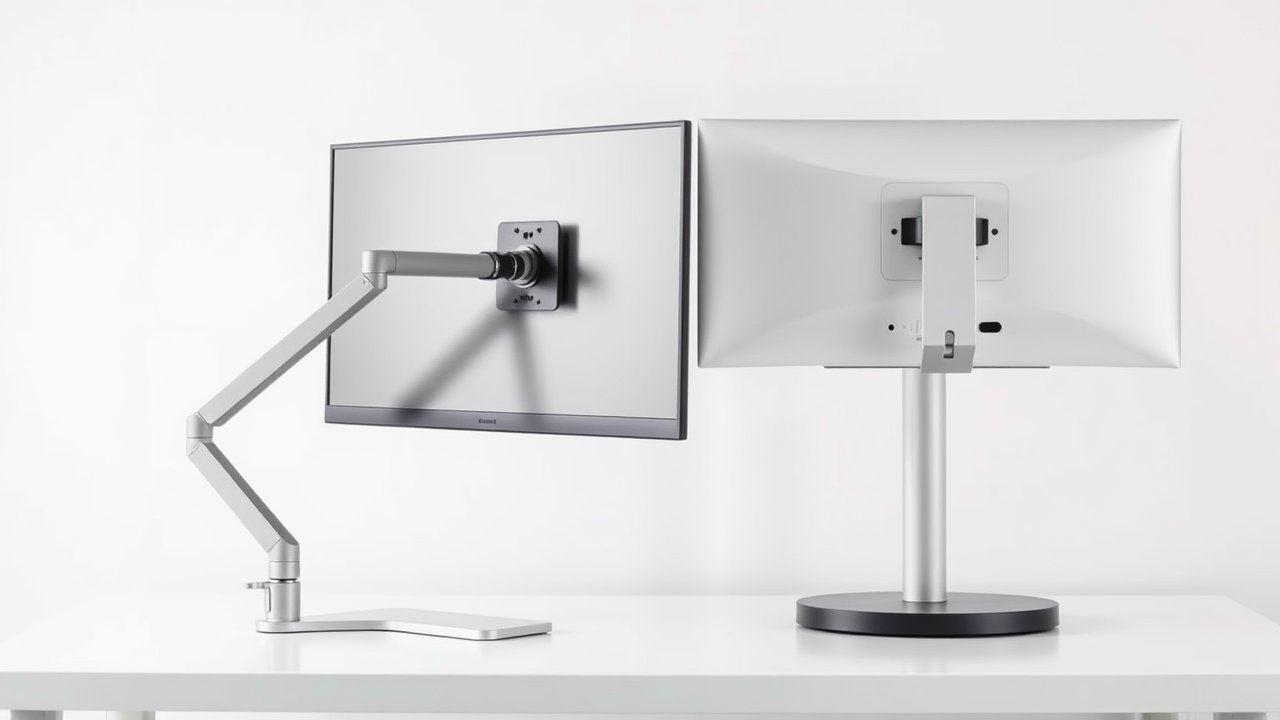
Every monitor comes with a stand, but that doesn’t mean it’s the best way to hold your screen. Many remote workers upgrade to a monitor arm for more flexibility and desk space, while others are perfectly happy with a sturdy stand or riser. Which one is right for you depends on your desk, your monitors, and how you work. This monitor arm vs monitor stand comparison breaks down the real differences in ergonomics, desk space, stability, installation, compatibility, and cost – so you can decide whether an arm is worth the upgrade or whether your stand is all you need.
As an Amazon Associate, I earn from qualifying purchases. This article contains affiliate links at no extra cost to you.
Quick Verdict
A monitor arm is the better choice if you want maximum adjustability, more desk space, or a multi-monitor setup – especially on a standing desk. A monitor stand (the included stand or a quality riser) is the better choice if you want simplicity, have a desk that can’t support a clamp, or rarely adjust your screen.
Side-by-Side Comparison
| Feature | Monitor Arm | Monitor Stand |
|---|---|---|
| Typical Price | $30–$400+ | Included or $20–$100 for risers |
| Adjustability | Height, depth, tilt, swivel, rotation | Limited – often tilt and some height |
| Desk Space | Frees most of the desk surface | Base takes up space |
| Stability | Good to excellent (quality arms); can bounce on wobbly desks | Very stable on solid desks |
| Installation | Clamp or grommet mount, 15–30 minutes | None |
| Compatibility | Requires VESA mount and suitable desk edge | Works with any monitor |
| Multi-Monitor Alignment | Excellent | Harder to align |
| Best For | Ergonomic flexibility, standing desks, multiple screens | Simple setups, rentals, glass desks |
Prices are approximate at the time of writing and may vary. Check Amazon for the current price.
Monitor Arms – In-Depth Review
Design & Build Quality
Monitor arms attach to the edge of your desk with a clamp or through a cable grommet hole. Most quality arms use gas springs or mechanical springs to hold the monitor at any height. Premium arms like the Ergotron LX are built from aluminum and steel and last for years.
Performance & Stability
A well-adjusted gas-spring arm lets you move your monitor with one hand and stays exactly where you leave it. Stability depends on the arm quality, the monitor weight, and the desk. On a wobbly desk, arms can amplify movement, especially when extended. Choosing an arm rated for your monitor’s weight is critical.
Features & Customization
Arms let you adjust height, depth, tilt, swivel, and rotation. You can push the screen back for more distance, pull it forward for detailed work, rotate it into portrait mode, or swing it aside when you need desk space. Many include cable management channels.
Price & Value
Basic arms start around $30, while premium arms cost $150 to $400. Our list of the best monitor arms under $50 covers budget options, and our guide to the best monitor arms for dual monitors includes premium picks.
Best for: Ergonomics-focused users, standing desks, multi-monitor setups, small desks.
Check Monitor Arms on Amazon →
Monitor Stands – In-Depth Review
Design & Build Quality
Most monitors include a stand. Quality varies widely – some offer height, tilt, swivel, and pivot adjustment, while budget monitors often have tilt-only stands. Aftermarket monitor risers raise the screen higher and often include storage space underneath.
Performance & Stability
Stands sit directly on the desk, so they’re usually very stable. There’s no extension, so there’s less bounce. However, if your stand doesn’t adjust in height, your monitor may sit too low for good ergonomics.
Features & Customization
Adjustable stands from brands like Dell and LG often provide good height adjustment. Risers add height and storage. But stands can’t move your monitor forward or backward much, and they take up desk space.
Price & Value
Your monitor’s stand is free. Risers cost $20 to $100. See our list of the best monitor risers and desk shelves.
Best for: Simple setups, glass or thick desks, renters, users who rarely adjust.
Check Monitor Risers on Amazon →
Monitor Arm vs Monitor Stand: Key Differences
Price Difference
Stands are free or cheap. Arms cost more but provide more flexibility. A good mid-range arm costs $50 to $150.
Ergonomics
Arms win. They let you place the screen at the exact height and distance your body needs. That’s especially important if you share a desk, use a standing desk, or wear progressive lenses. Our guide on how to position your monitor explains ideal positions.
Desk Space
Arms free up the desk surface under your monitor. That space can hold a notebook, a laptop, or nothing at all – which makes a small desk feel much bigger.
Stability
Stands are generally more stable. Arms can bounce slightly when typing on a wobbly desk, especially at full extension.
Installation and Compatibility
Stands need no installation. Arms require a VESA-compatible monitor (most have 75×75 or 100x100mm mounting holes), a desk edge that fits the clamp, and a desktop strong enough to support the weight. Glass desks and desks with thin tops or rear crossbars may not work.
Who Should Buy a Monitor Arm
- You want precise ergonomic positioning
- You use a standing desk
- You have two or more monitors
- Your desk is small and you need more surface space
- You switch between sitting and standing or share a desk
Who Should Use a Monitor Stand
- Your monitor’s stand already adjusts to the right height
- Your desk can’t support a clamp
- You rarely adjust your monitor
- You want the simplest setup
How to Check If Your Desk Supports a Monitor Arm
Before buying an arm, check these four things:
- VESA mount: Look for four screw holes on the back of your monitor. If there aren’t any, you’ll need an adapter.
- Desk thickness: Most clamps fit desks between about 0.4 and 3.5 inches thick. Check the arm’s specs.
- Desk edge clearance: The clamp needs space behind your desk and under the edge. Walls, crossbars, or drawers can get in the way.
- Desktop strength: Particleboard and thin tops may crack under heavy loads. Use a reinforcement plate to spread the load.
Common Problems and Fixes
Monitor drifts down: Increase the gas spring tension. Monitor drifts up: Decrease tension. Arm bounces when typing: Shorten the extension or tighten joints; consider a more rigid arm. Clamp damages desk: Add a steel reinforcement plate. Cables pull when adjusting: Leave enough slack and use the arm’s cable channels.
Types of Monitor Arms Explained
Not all monitor arms are the same. Here’s a quick overview:
- Gas-spring arms: The most popular type. A gas cylinder balances the monitor’s weight, so you can move it smoothly with one hand. Best for frequent adjustments.
- Mechanical spring arms: Similar to gas springs but use a mechanical spring. Often more durable over time and found in premium arms.
- Fixed-pole arms: The monitor mounts on a vertical pole and adjusts by sliding along it. Less flexible, but very stable and affordable – good for dual monitors that rarely move.
- Wall-mounted arms: Attach to the wall instead of the desk. Great for small or glass desks, but harder to install and less suited to standing desks.
- Dual and triple arms: Hold multiple monitors on one clamp, making it easy to align screens.
Types of Monitor Stands Explained
- Built-in stands: Included with your monitor. Quality ranges from tilt-only to fully adjustable.
- Monitor risers: Platforms that raise a monitor by a few inches, often with storage underneath.
- Desk shelves: Wide risers that span the back of the desk and hold one or two monitors.
- Freestanding stands: VESA stands with a weighted base. They offer some arm-like adjustability without clamping, which helps with glass desks.
Setup Tips for Each Option
For a monitor arm: Mount it near the center of the back edge for a single monitor, or at the point between two monitors for a dual setup. Set the spring tension before you let go of the monitor. Route cables through the arm’s channels with enough slack for full movement.
For a monitor stand: Raise the screen so the top is at eye level, using a riser if needed. Place the stand centered behind your keyboard. If the stand doesn’t adjust in depth, move the whole monitor back to about an arm’s length.
Monitor Arms and Standing Desks
Monitor arms are especially useful on standing desks. They let you fine-tune screen height for sitting and standing, and they keep cables neatly routed as the desk moves. Make sure your desk’s weight capacity includes the arm and monitors. Our guide to the best standing desks for two monitors covers desks that pair well with arms.
Cost Comparison Over Time
A monitor stand costs nothing if you use the one included with your monitor. A riser adds $20 to $100. A quality single monitor arm costs $50 to $150, and premium arms with long warranties cost more. Because monitor arms often outlast several monitors, you can move a good arm from screen to screen for many years – as long as each new monitor has a VESA mount and falls within the arm’s weight range.
Think about value in terms of daily use. If a $100 arm lets you sit with better posture and use your full desk surface every workday for five years, that’s about eight cents per workday. For many people, that’s a worthwhile upgrade.
Real-World Scenarios
Small apartment desk (40 to 48 inches wide): A monitor arm frees up valuable surface area and lets you push the screen back for proper viewing distance. Arm wins.
Glass desk: Most clamps aren’t safe on glass. Use a freestanding VESA stand or a riser. Stand wins.
Dual-monitor developer setup: A dual arm aligns screens perfectly and makes portrait mode easy. Arm wins.
Rental with a borrowed desk: If you can’t clamp to the desk or don’t want to risk damage, a stand or riser is the simplest solution. Stand wins.
Standing desk: An arm lets you fine-tune height in both positions and keeps cables neat. Arm wins.
Our Recommendation
Winner for most remote workers: Monitor arm. It provides better ergonomics, more desk space, and easier multi-monitor alignment. A quality gas-spring arm is one of the best upgrades for a home office.
Runner-up: Monitor stand. If your monitor’s stand adjusts to the right height and you don’t need extra space, there’s no need to upgrade. A riser is an inexpensive way to raise a low monitor.
For general guidance, the OSHA computer workstation monitor guidance covers height and distance recommendations that apply to both arms and stands.
FAQ
Are monitor arms worth it?
For most people who work long hours, yes. They improve ergonomics, free up desk space, and make multi-monitor setups easier.
Are monitor arms stable?
Quality arms are stable when matched to your monitor’s weight and mounted on a sturdy desk. Some bounce is normal at full extension on wobbly desks.
Can I use a monitor arm on any desk?
Not every desk. Glass desks, very thin tops, and desks with obstructions behind them may not work. Check desk thickness and clearance first.
Do all monitors work with arms?
Most monitors with VESA mounts work. Some curved, ultrawide, or very slim monitors need special adapters or heavier-duty arms.
Is a monitor arm better for neck pain?
A monitor arm makes it easier to place the screen at the correct height and distance, which can help reduce neck strain. If pain persists, consult a healthcare professional.
Can I use a monitor arm with a laptop?
Yes, with a laptop tray attachment that clips onto the arm’s VESA plate. Many arms offer trays that hold laptops at eye level.
Final Thoughts
In the monitor arm vs monitor stand debate, arms offer the best ergonomics and desk space, while stands offer simplicity and stability. If your current stand puts your monitor at the right height and you’re happy with your desk space, keep it. If not, a quality monitor arm is one of the most impactful home office upgrades you can make.