
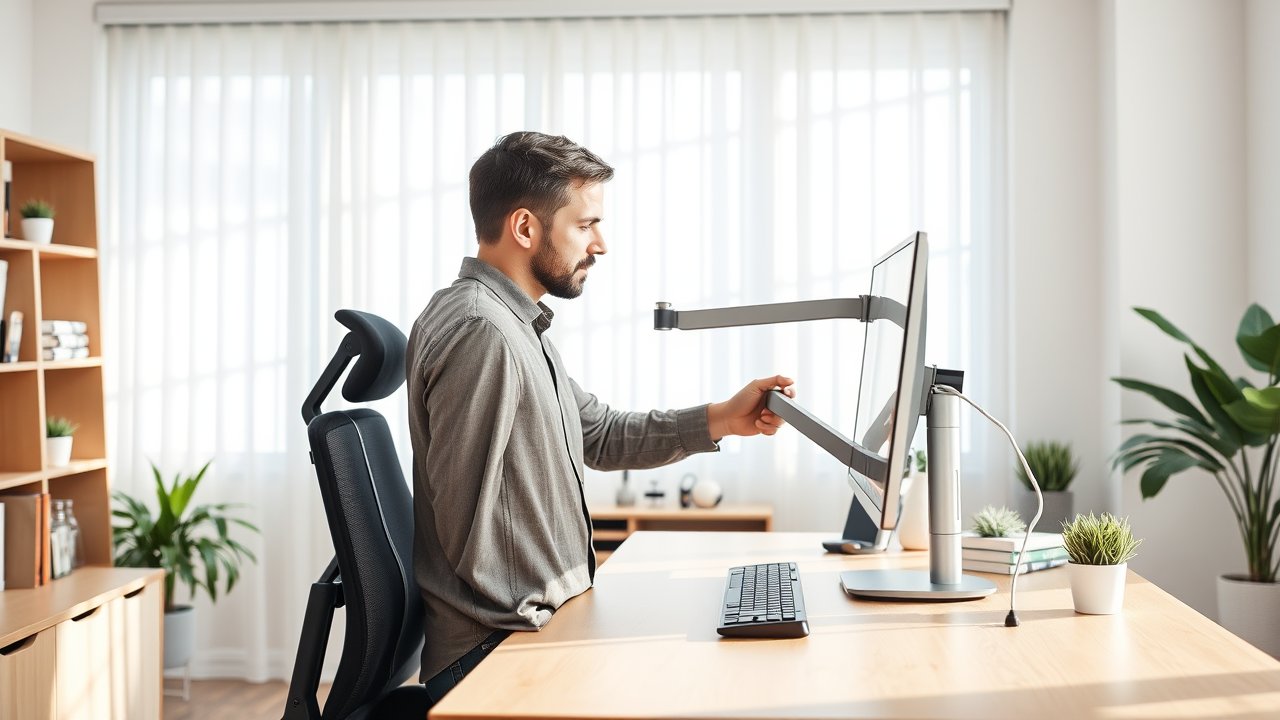
If your neck feels stiff by lunchtime or your eyes are tired by mid-afternoon, your monitor position may be to blame. Most people set up their screen once – usually wherever it fits on the desk – and never think about it again. But a monitor that’s too low, too close, or off to the side forces your neck, shoulders, and eyes to work harder all day. Learning how to position your monitor correctly takes about ten minutes and costs little or nothing. This guide walks you through seven steps: height, distance, angle, centering, dual-monitor layouts, laptop setups, and lighting. You’ll also find a quick reference table and the most common mistakes to avoid.
As an Amazon Associate, I earn from qualifying purchases. This article contains affiliate links at no extra cost to you.
What You Need Before You Start
- Your chair adjusted to the correct height (feet flat, thighs roughly parallel)
- A tape measure or ruler
- Books, a monitor riser, or a monitor arm if you need to raise the screen
- Your normal glasses or contacts
- About 10 to 15 minutes
Quick Reference: Ideal Monitor Position
| Setting | Recommendation |
|---|---|
| Height | Top of screen at or slightly below eye level |
| Distance | About an arm’s length (20–30 inches) |
| Tilt | Tilted back 10–20 degrees |
| Centering | Primary screen directly in front of you |
| Dual monitors | Gap centered (equal use) or main screen centered (primary use) |
| Glare | Screen perpendicular to windows |
Step 1: Set Your Chair and Desk First
Your monitor position depends on your eye level, which depends on your chair. Adjust your chair so your feet rest flat on the floor and your elbows are at roughly 90 degrees at the keyboard. If you haven’t done this yet, start with our guide on how to adjust your office chair, then check your desk using our desk height chart. Only then adjust the monitor.
Step 2: Set the Monitor Height
Sit upright and look straight ahead. Your eyes should land at or slightly below the top edge of the screen – most of the screen should be slightly below eye level. This lets you look down a little, which is the natural, relaxed position for your eyes and neck.
If the monitor is too low, you’ll tilt your head forward, straining your neck. If it’s too high, you’ll tilt your head back and your eyes may dry out faster.
Exceptions:
- Bifocal or progressive lens wearers should lower the monitor further – sometimes by a few inches – so they can read through the lower part of their lenses without tilting their head back.
- Large monitors (32 inches or more) should be positioned so the center of the screen is slightly below eye level.
If your monitor’s stand doesn’t go high enough, use a riser or monitor arm. See our picks for the best monitor risers and desk shelves.
Step 3: Set the Viewing Distance
Sit back in your chair and extend your arm. Your fingertips should roughly touch the screen. That’s about 20 to 30 inches for most people – a good starting distance.
Larger and higher-resolution monitors usually need more distance. If you can’t see the whole screen without moving your head, move it back. If you’re squinting or leaning forward to read text, increase the font size or scaling rather than moving the screen closer.
| Monitor Size | Approximate Distance |
|---|---|
| 24″ | 20–30 inches |
| 27″ | 25–35 inches |
| 32″ | 30–40 inches |
| 34″ ultrawide | 30–40 inches |
Step 4: Tilt the Screen
Tilt the top of your monitor back slightly – about 10 to 20 degrees. This keeps the screen perpendicular to your line of sight as you look down slightly. It also helps reduce glare from overhead lights.
Step 5: Center the Monitor
Place your primary monitor directly in front of you, aligned with your keyboard. If your screen is off to the side, you’ll twist your neck all day, which can cause one-sided tension. Your body, keyboard, and screen should all face the same direction.
Step 6: Position Dual or Multiple Monitors
Dual monitors require a decision:
- If you use both screens equally: Center the gap between them in front of you, and angle both screens inward slightly.
- If you use one screen most: Center the primary screen in front of you, and place the secondary screen to the side, angled inward.
- Vertical monitors: Place a portrait-oriented monitor on the side as a secondary screen for documents or code.
Keep the tops of both monitors at the same height. For three monitors, center the main screen and angle the side screens inward like a gentle curve. Monitor arms make it easy to align screens perfectly – see our picks for the best monitor arms for dual monitors.
Step 7: Control Glare and Lighting
Position your monitor so windows are to the side, not behind or in front of it. A window behind the monitor makes your eyes constantly adjust between bright and dark; a window behind you causes reflections. Use blinds to control bright light, and match screen brightness to your room. In the evening, a light bar or bias light reduces the contrast between a bright screen and a dark room. See our best monitor light bars guide for options.
How to Position Your Monitor With a Laptop
Laptops are ergonomically awkward because the screen and keyboard are attached. To fix this:
- Place the laptop on a stand to raise the screen to eye level.
- Use an external keyboard and mouse at elbow height.
- If you add an external monitor, decide which screen is primary and position accordingly.
Our list of the best laptop stands includes adjustable and portable options.
How to Position Your Monitor at a Standing Desk
When you switch from sitting to standing, your eye level moves along with your desk – but only if your posture and desk height are correct for both positions. Save your desk presets so the monitor ends up at the correct height in both positions. If your monitor is on an arm, you may need to adjust it slightly between sitting and standing. For more, see our guide on how to set up a standing desk correctly.
Why Monitor Position Matters for Your Body
Your head weighs roughly 10 to 12 pounds. When it’s balanced directly over your shoulders, your neck muscles barely have to work. But every time you lean forward to look down at a low screen or crane toward a distant one, those muscles have to hold your head up against gravity. Over a full workday, that sustained effort often leads to stiffness in the neck, upper back, and shoulders, and sometimes tension headaches.
Your eyes are affected too. When a screen is too close, your eye muscles work harder to focus. When it’s too high, you open your eyes wider, which increases tear evaporation and can lead to dry, tired eyes. A slightly downward gaze at a comfortable distance is the most relaxed position for both.
Monitor position also influences how you sit. A screen that’s too far away pulls you forward out of your chair’s backrest, so you lose the benefit of lumbar support. A well-positioned monitor makes it easy to sit back, relax your shoulders, and stay comfortable for longer. If you’re already dealing with discomfort, our guide on how to reduce back pain when working from home covers additional fixes.
Special Situations
Ultrawide and Curved Monitors
Curved ultrawide monitors are designed so each part of the screen is roughly the same distance from your eyes. Sit centered at the distance the curve is designed for – usually around 30 to 40 inches for a 34-inch ultrawide. Because the screen is wide, keep important windows in the center and use the edges for reference material to reduce head turning. See our list of the best ultrawide monitors for home office.
Vertical (Portrait) Monitors
A portrait monitor is tall, so set its center slightly below eye level and place it to the side of your main screen. Coders and writers often use a vertical screen for long documents. Keep the top edge no higher than your primary monitor.
Small Desks
On shallow desks, it can be hard to place a monitor far enough away. A monitor arm lets you push the screen past the back edge of the desk, gaining several inches of viewing distance. Wall mounts are another space-saving option.
Shared Workstations
If two people of different heights share a monitor, use a gas-spring monitor arm so each person can quickly adjust height and distance. Mark preferred positions with a small piece of tape on the arm.
Recommended Products for Correct Monitor Position
- Gas-Spring Monitor Arm – Easily adjust height, distance, and tilt.
- Dual Monitor Arm – Align two screens perfectly.
- Monitor Riser – A simple way to raise a screen that sits too low.
- Laptop Stand – Raise a laptop screen to eye level.
- Monitor Light Bar – Reduce glare and contrast at night.
Prices are approximate at the time of writing and may vary. Check Amazon for the current price.
A 2-Minute Daily Check
Even a perfectly set up workstation drifts over time – you bump the monitor, lower the chair, or move the desk. Once a day, take two minutes to check:
- Are your feet flat and your elbows at about 90 degrees?
- Do your eyes land near the top of the screen when you look straight ahead?
- Is the screen about an arm’s length away?
- Is your main screen centered in front of you?
- Is there glare or a bright window behind the screen?
If anything is off, fix it before you start working. It’s a simple habit that keeps your setup working for you.
Don’t Forget Breaks
Perfect positioning reduces strain, but your body still needs movement. Look away from the screen regularly using the 20-20-20 rule: every 20 minutes, look at something 20 feet away for 20 seconds. Stand up and stretch at least once an hour. If you have a standing desk, alternate positions throughout the day.
Common Mistakes to Avoid
- Monitor too low – the most common mistake, especially with laptops.
- Monitor too close – leads to eye strain and leaning back.
- Screen off to the side – causes neck twisting.
- Ignoring bifocals – lens wearers need a lower screen.
- Bright window behind the monitor – causes eye fatigue.
- Mismatched dual monitor heights – forces constant neck adjustments.
FAQ
Should my monitor be at eye level?
The top of the screen should be at or slightly below eye level, so you look slightly down at the center of the screen.
How far should my monitor be from my eyes?
About an arm’s length – typically 20 to 30 inches. Larger monitors need more distance.
Is it better to look up or down at a monitor?
Slightly down. Looking down a little is the most relaxed position for your eyes and neck. Looking up strains the neck and dries out your eyes faster.
Should I tilt my monitor?
Yes, tilt the top back about 10 to 20 degrees so the screen faces your eyes as you look down slightly.
How should I position two monitors?
If you use both equally, center the gap between them. If you use one more, center that screen and angle the second to the side.
What’s the best monitor position for neck pain?
Keep the screen centered, at the correct height, and at arm’s length. Avoid looking down at a laptop or up at a tall screen. If pain persists, consult a healthcare professional.
Does monitor position affect eye strain?
Yes. Incorrect distance, height, and glare all contribute to eye strain. The OSHA guidance on monitor placement provides helpful details.
Final Thoughts
Learning how to position your monitor is one of the easiest ergonomic improvements you can make. Set your chair first, then place the top of the screen at eye level, about an arm’s length away, centered in front of you and tilted back slightly. Fix glare, align dual monitors, and use a stand for laptops. Small adjustments add up to a more comfortable, productive workday.