
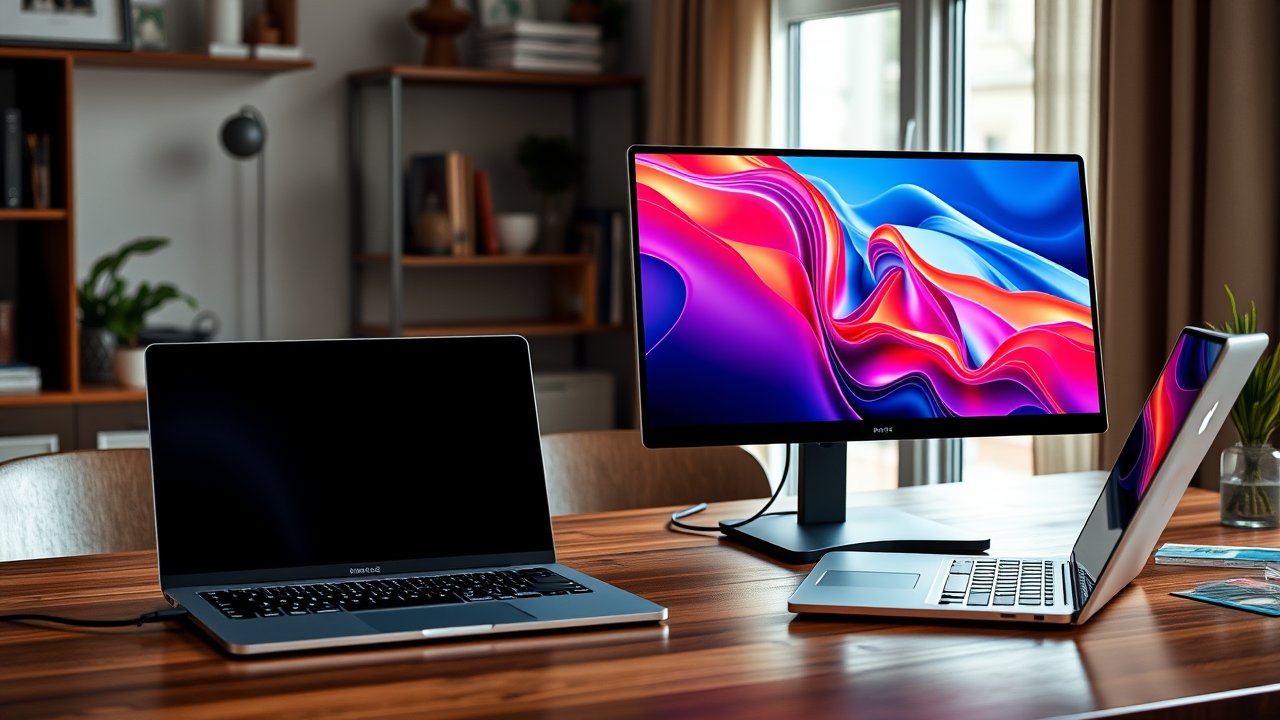
A laptop is great for flexibility, but a single small screen slows you down. Switching between windows all day, squinting at spreadsheets, and juggling video calls with notes is tiring. A portable monitor solves that by giving you a second screen that’s light enough to carry in a backpack and simple enough to connect with a single USB-C cable. Whether you work from a small apartment, move between rooms, or travel regularly, the best portable monitor for laptop users can nearly double your productivity without a permanent desk setup. In this guide, we compare six portable monitors for different needs – from budget picks to touchscreen and laptop-attached designs – and explain what to look for so your new screen works with your laptop on the first try.
As an Amazon Associate, I earn from qualifying purchases. This article contains affiliate links at no extra cost to you.
Quick Comparison Table
| Product | Price | Best For | Rating |
|---|---|---|---|
| ASUS ZenScreen MB16AC | ~$200 | Best overall | ⭐⭐⭐⭐⭐ |
| Arzopa A1 15.6″ | ~$80–$100 | Best budget | ⭐⭐⭐⭐ |
| espresso Display 15 | ~$300+ | Best premium design | ⭐⭐⭐⭐⭐ |
| Lenovo ThinkVision M14 | ~$230 | Best for business travel | ⭐⭐⭐⭐ |
| Mobile Pixels Duex | ~$250 | Best laptop-attached | ⭐⭐⭐⭐ |
| ViewSonic TD1655 Touch | ~$250 | Best touchscreen | ⭐⭐⭐⭐ |
Prices are approximate at the time of writing and may vary. Check Amazon for the current price.
Our Top Picks at a Glance
The ASUS ZenScreen MB16AC is the best portable monitor for laptop users overall – reliable, easy to set up, and backed by a trusted brand. The Arzopa A1 is a great budget alternative for around $100. If you want a premium look and magnetic mounting, the espresso Display 15 is one of the most stylish options available.
Reviews – The Best Portable Monitor for Laptop Users
1. ASUS ZenScreen MB16AC – Best Overall
ASUS’s ZenScreen line is one of the most trusted names in portable monitors. The MB16AC is a 15.6-inch Full HD IPS display that connects with a single USB-C cable for both power and video. It also supports USB-A connections with DisplayLink drivers on some setups, which can help with older laptops.
The included smart case doubles as a stand, and a pen hole at the corner lets you prop it up in portrait orientation. Colors and viewing angles are good for office work. It weighs under two pounds, making it easy to carry.
Pros:
– Single-cable USB-C setup
– Reliable brand and build quality
– Works in landscape or portrait
– Lightweight and slim
Cons:
– Brightness is fine indoors but limited outdoors
– Built-in speakers are weak or absent depending on version
– Case stand offers limited angles
2. Arzopa A1 15.6″ – Best Budget Option
Arzopa has become one of the most popular budget portable monitor brands on Amazon. The A1 offers a 15.6-inch Full HD IPS screen, USB-C and mini-HDMI inputs, and a slim design for around $100.
For spreadsheets, documents, and chat windows, it performs well. It’s not as bright or color-accurate as premium models, but for most remote work tasks, it’s more than good enough. If your laptop doesn’t support video over USB-C, the HDMI option adds flexibility.
Pros:
– Very affordable
– USB-C and HDMI inputs
– Lightweight
– Good screen for the price
Cons:
– Lower brightness
– Basic stand/case
– Build feels less premium
3. espresso Display 15 – Best Premium Design
The espresso Display is one of the most beautiful portable monitors available. It has a slim aluminum design, optional touch support depending on version, and magnetic mounting options. It pairs especially well with MacBooks, and the companion software adds useful features.
It’s expensive, but if you want a portable monitor that looks as good as your laptop and feels premium, espresso is the standout.
Pros:
– Premium aluminum design
– Magnetic mounting accessories
– Touch support on select models
– Excellent with MacBooks
Cons:
– Expensive
– Accessories cost extra
– Overkill for basic tasks
4. Lenovo ThinkVision M14 – Best for Business Travel
Lenovo’s ThinkVision M14 is a 14-inch portable monitor designed for professionals. It’s compact, light, and has USB-C ports on both sides, so you can plug it in on either side of your laptop. A built-in stand with adjustable tilt makes setup quick.
It’s especially good with ThinkPads but works with any USB-C laptop that supports DisplayPort Alt Mode. The 14-inch size is ideal for frequent travelers.
Pros:
– Compact and lightweight
– USB-C ports on both sides
– Built-in adjustable stand
– Durable business build
Cons:
– Smaller 14″ screen
– Pricier than budget brands
– Matte screen is less vibrant
5. Mobile Pixels Duex – Best Laptop-Attached
The Mobile Pixels Duex attaches to the back of your laptop screen and slides out to the side, creating a dual-screen laptop. It’s perfect for working in coffee shops, on the couch, or anywhere without a desk.
It adds weight to your laptop lid, so check compatibility with your laptop size and hinge strength. The screen can rotate for presentations or sharing.
Pros:
– Attaches directly to laptop
– Great for desk-free working
– Rotates for sharing
– Compact setup
Cons:
– Adds weight to laptop lid
– Smaller screens on some versions
– Compatibility depends on laptop size
6. ViewSonic TD1655 Touch – Best Touchscreen
The ViewSonic TD1655 adds touch support to a 15.6-inch portable display. It’s useful for presentations, collaborative work, and creative tasks. The built-in stand and USB-C connectivity make setup easy.
Touch support works best with Windows laptops. It’s heavier than non-touch models but provides extra functionality.
Pros:
– Touchscreen support
– Built-in stand
– Good color and brightness
– USB-C connectivity
Cons:
– Heavier than non-touch models
– Touch support varies by OS
– More expensive
How We Researched & Selected These Products
Our picks are based on research and user reviews rather than hands-on testing. We compared screen size, resolution, panel type, brightness, weight, connectivity options, and stand design. We then analyzed thousands of verified buyer reviews for compatibility issues, dead pixels, connection reliability, and build quality. Independent reviews from tech publications helped verify color and brightness claims. We focused on monitors that work reliably with a single USB-C cable and are practical for home office and travel use.
Buyer’s Guide – How to Choose the Best Portable Monitor for Laptop Use
Check Your Laptop’s USB-C Port First
This is the most important step. For a single-cable setup, your laptop’s USB-C port must support video output (DisplayPort Alt Mode or Thunderbolt). Look for a small DisplayPort or lightning bolt icon next to the port, or check your laptop’s specs. If your port doesn’t support video, you’ll need an HDMI connection or a DisplayLink-compatible monitor with drivers.
Screen Size
14 inches is the most portable. 15.6 inches is the most common and a good balance. 16 to 17 inches offers more workspace but adds weight.
Resolution and Panel Type
Full HD (1920×1080) is standard and sharp at 15.6 inches. Higher resolutions look sharper but use more power. IPS panels offer better viewing angles and color than TN panels.
Brightness
Most portable monitors are 250 to 300 nits – fine indoors. If you work near bright windows, look for higher brightness.
Stand and Case
Some portable monitors use folding cases as stands, which offer limited angles. Built-in kickstands are more flexible. You can also use a small tablet stand or monitor arm adapter.
Power Draw
A portable monitor powered by your laptop will drain its battery faster. For all-day use, connect the monitor to a power adapter and use pass-through charging if supported.
Price vs. Quality – What to Expect at Each Budget
- Under $120: Good Full HD screens with basic stands.
- $120–$250: Better brightness, build quality, and stands.
- $250+: Premium materials, touch support, and unique designs.
How to Set Up a Portable Monitor Ergonomically
Portable monitors often sit too low, which strains your neck. Raise both your laptop and portable monitor so the top of each screen is at or slightly below eye level. A laptop stand helps a lot, and you can use a stack of books or a small stand for the portable monitor. Then use an external keyboard and mouse at elbow height.
Place your primary screen directly in front of you and angle the second screen slightly inward. If you use both screens equally, center the gap between them. For a permanent desk setup, a full-size monitor is usually better – see our guide to the best monitors for home office. If you switch between home and travel often, a USB-C docking station simplifies connecting everything.
Troubleshooting Common Portable Monitor Problems
The monitor doesn’t turn on. Your laptop’s USB-C port may not support video output, or it may not provide enough power. Try another port, use the included cable (some cheap cables only carry power or data), or connect external power to the monitor.
The screen flickers or disconnects. This often happens when the laptop can’t supply enough power, especially at high brightness. Lower the brightness or connect the monitor to a wall charger with pass-through power.
The resolution looks blurry. Check your display settings and make sure the portable monitor is set to its native resolution (usually 1920×1080). Adjust scaling to 100% or 125% for crisp text.
Mac shows a mirrored screen. Open Display settings and choose “Extend” instead of “Mirror.” Some MacBook models also limit how many external displays they support.
The monitor won’t stay upright. Folding cases can slip on smooth desks. A small tablet stand or adhesive rubber pads solve this cheaply.
Portable Monitor vs. Full-Size Monitor
Portable monitors are ideal if you move around, travel, or have limited space. Full-size monitors offer larger screens, better brightness, and adjustable stands for a fixed workstation. Many remote workers use both: a full-size monitor at home and a portable monitor for travel or working from other rooms.
Frequently Asked Questions
Do portable monitors work with any laptop?
Most work with laptops that support video over USB-C or have an HDMI port. Some monitors also support DisplayLink over USB-A with drivers. Check your laptop’s ports before buying.
Can a portable monitor be powered by my laptop?
Yes, many portable monitors draw power over USB-C from your laptop. This drains your laptop’s battery faster, so plug into power for long sessions.
Are portable monitors good for working from home?
Yes, especially in small spaces or if you move around. They give you a second screen without a permanent setup.
Can I use a portable monitor with a MacBook?
Yes. MacBooks with USB-C or Thunderbolt ports support external displays, but some base-model MacBooks have limits on the number of external monitors. Check your model’s specifications.
Can I connect a portable monitor to a phone or tablet?
Some phones and tablets support video output over USB-C, which lets you use a portable monitor as a bigger screen. Check your device’s compatibility.
How much does a portable monitor weigh?
Most 15.6-inch portable monitors weigh between 1.5 and 2.5 pounds, plus a few ounces for the case. 14-inch models are lighter, while touchscreen and larger models are heavier. That’s light enough to carry in a laptop bag every day.
Is a portable monitor bad for my eyes?
Not inherently. Keep brightness similar to your surroundings, position the screen at the correct height and distance, and follow the 20-20-20 rule. The American Academy of Ophthalmology has helpful tips for screen use.
Final Verdict
The ASUS ZenScreen MB16AC is the best portable monitor for laptop users thanks to its reliable single-cable setup, lightweight design, and trusted brand. Budget shoppers should choose the Arzopa A1, while those wanting premium design should consider the espresso Display 15. Frequent travelers will appreciate the compact Lenovo ThinkVision M14. Check your laptop’s USB-C port, choose a screen size that fits your workflow, and you’ll enjoy a dual-screen setup anywhere.